Features
What PayApps does
Items marked Built · in testing work in the app today. Items marked Next are planned, not built; the subcontractors using it set their order.
Built · in testing
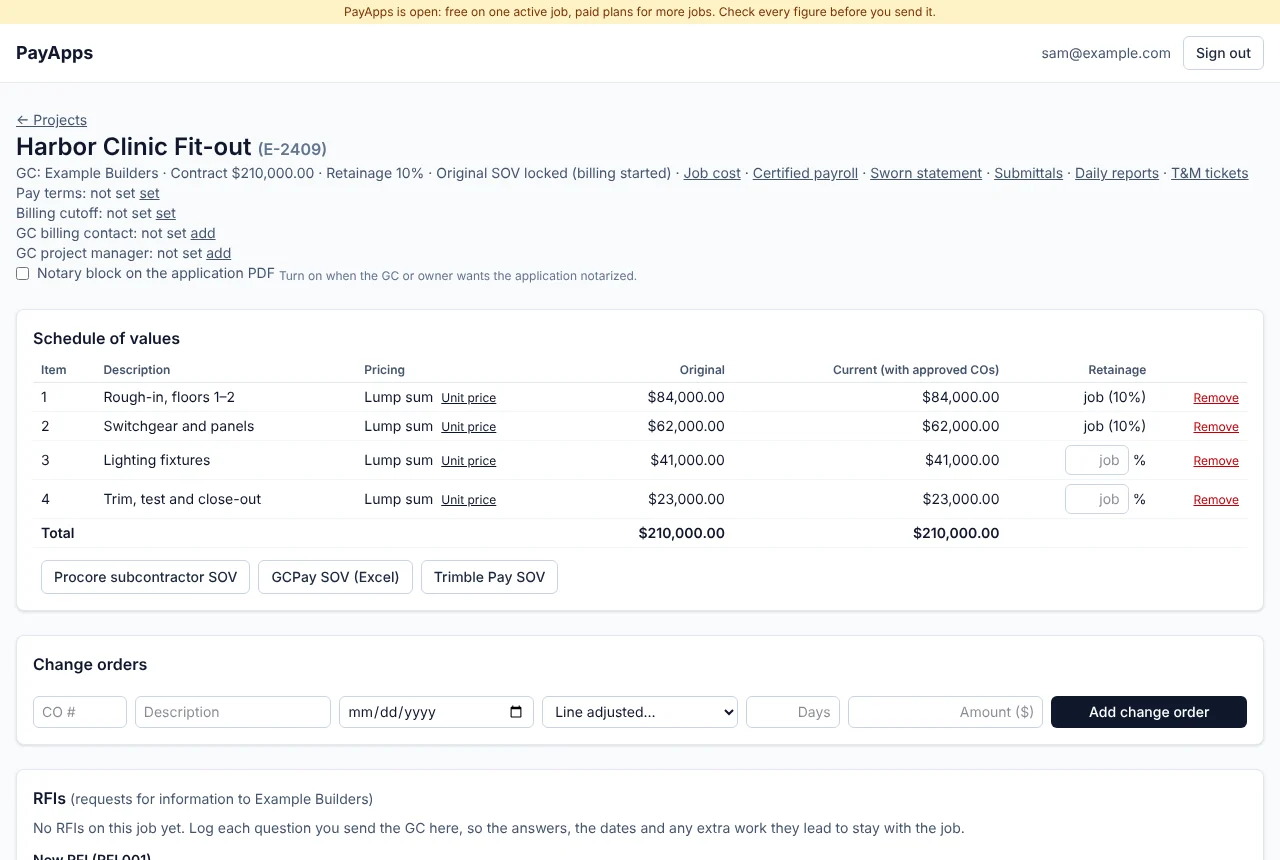
Schedule of values per job
Each job starts from the SOV in your subcontract, with the contract sum and retainage terms. Every pay app is built from it, so lines, scheduled values and totals stay the same from month to month, and the SOV locks once the first pay app goes out.
- Import your own .xlsx, CSV or PDF bid breakdown (a PDF printed from Excel or an estimating program, or a scan: a searchable PDF's text layer is read, and a scan of pictures only, even one fed in sideways or upside down, is read by OCR in your browser, up to ten pages, with a note to check it against the paper): the file is read in your browser and never uploaded, title blocks, division headings, subtotals and totals are left out (each listed with its row), and the sheet's own total is checked against its lines and the contract sum
- Or paste rows from Excel or Google Sheets, copy another job's lines, or type them in
- Starting mid-job? Enter your last application from the old spreadsheet or software as the opening balance and carry on from the next number
- GC on Procore asking for a detailed subcontractor SOV? Choose the CSV template the GC's commitment gives you, place each of your lines under one of their positions, see the totals against theirs, and download the filled template to import; save the placement with the job for the monthly Procore invoice. Columns and the GC's cells are kept as they are; built from Procore's published instructions, not yet tried on a live Procore project
- GC on GCPay asking for your schedule of values breakdown? Download it as the Excel file GCPay's Upload button takes (Item Number, Description and Value, base contract only, as GCPay's subcontractor guide sets out), with a check that the lines add up to the contract amount before GCPay refuses the submission. Built from GCPay's published subcontractor guide, not yet tried on a live GCPay project
- Unit-price contracts: give a line its quantity, unit and unit price (3,400 LF of curb at $18.25) and bill it each month by the quantity installed. The dollars are always quantity × unit price to the cent, the quantity to date is on the screen, the CSV and the PDF, and GCPay's five-column unit-price SOV (Units, Unit Description, Unit Value) downloads from the same job
Built · in testing
The monthly pay app
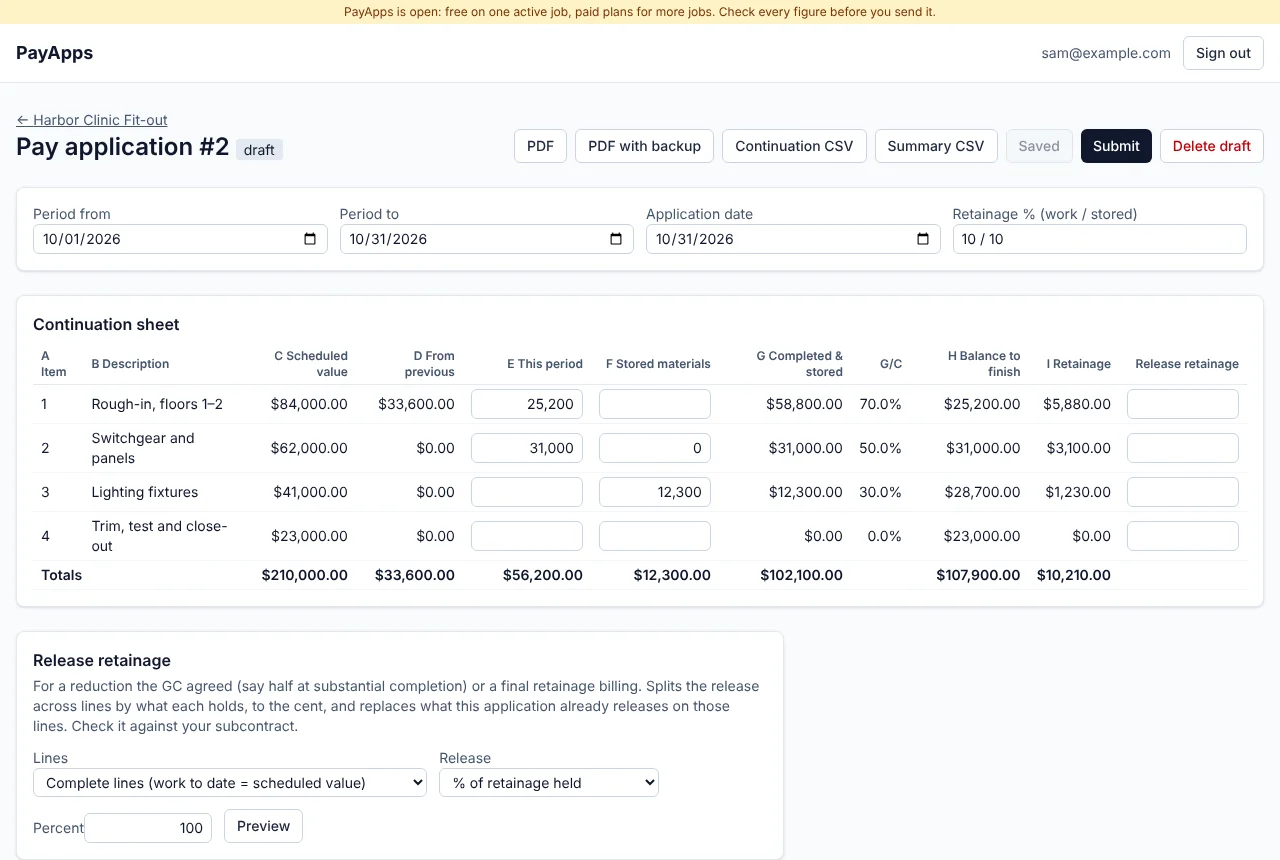
Enter work completed this period and materials presently stored per line; the continuation-sheet columns follow: total completed and stored, percent complete, balance to finish and retainage.
- GC billing through Procore? Each pay app has a Procore invoice sheet: the Work Completed This Period and materials-stored amounts to type into the GC's Procore invoice, line by line, with copy buttons, so it matches the G702/G703 you send. If the GC's invoice lists their own SOV positions instead of your lines, save where your lines sit under those positions once (from the subcontractor SOV template) and every pay app's sheet totals by position, with change orders listed apart. Where the stored-materials balance fell and new deliveries can't be told apart, it says so instead of guessing. Built from Procore's published help, not yet tried on a live Procore project
- GC billing through Oracle Textura? Download the This Period or To Date billing template from Textura's Upload Billing Amounts, choose it on the pay app, and download it back filled: Work This Period and Material Stored This Period, or Completed to Date (work completed plus materials stored, G703 column G), on each of your lines, matched by phase code, description or budget (change any match), with every other cell kept as Textura wrote it, ready for the same upload. Lines on no Textura row, budgets that differ from your SOV, and To Date lines where Textura already shows more than your application are pointed out. Built from Oracle's published help, not yet tried on a live Textura project
- Summary page: original contract sum, net change by change orders, total completed and stored to date, retainage, less previous certificates, current payment due
- PDF in a familiar application-and-continuation-sheet layout (our own layout, not an AIA document), plus CSV
- Draft, submitted, certified and paid, with the GC's certified amount where it differs; history that can't be rewritten
- Lender, title company or owner asking for a contractor's sworn statement (the Illinois and Michigan kind)? The job's sworn statement page lists everyone who supplied labor or material, prefilled from its purchase orders and subcontracts, checked against the contract sum and the pay app's amount due, and prints as a PDF with a jurat for the notary. The list of parties and what each was paid is saved with the job, so next month's statement starts from this month's on any computer. Which statement a draw needs, and whether it is complete, is yours to check
- GC wants it notarized? Turn on the notary block for that job and the summary page carries a jurat with blanks and a seal box under your signature
- Attach the backup to each pay app: stored-material invoices, certified payroll, insurance certificates, photos, the signed copy the GC returns
- Keep your certificates of insurance (general liability, auto, workers' comp, umbrella and others) with their policy dates: a note on the projects page 30 days before one expires, and a warning on any draft pay app dated on or after an expiry, or within 30 days before it, so a lapsed certificate doesn't hold up the payment. Tick which jobs' GCs hold each certificate: the renewal then lists every GC to send it to, drafts the email to each one from the certificate's details (you attach the PDF and send it from your own mail), and each pay app says whether its GC has the certificate on file. Type what each job's subcontract requires (coverages, minimum limits, additional insured, waiver of subrogation, primary and non-contributory, whether an umbrella may count), or read it from the subcontract's insurance exhibit PDF in your browser, each value shown with the sentence it came from for you to check, and each requirement shows as met or as a gap in words, on the job and on its draft pay app. It checks what you typed from the certificate, not the policy itself
- Keep your other compliance papers beside them: contractor's licenses by state with class and number, business license, W-9 (the date you signed it; the tax ID number is never a typed field), bonding letter, safety program, EMR letter, OSHA 300A summary and DBE/MBE/WBE certifications. Keep each one's file with it (the license card, the bonding letter PDF, and the signed W-9 only if you choose) and add it to a pay application's backup in one click. The same 30-day note and pay app warning when one with an expiry date is about to lapse, and the whole list as text to paste into a GC's prequalification form. It reads what you type and does not check a license with the state board
- One PDF to send the GC: the application, an index of every attached file and the page it starts on, then the PDF and photo backup, every page numbered (files a PDF can't hold, like spreadsheets, are listed to send separately); change orders get the same packet with their pricing backup
Built · in testing
Retainage, held and released
Retainage terms come from your contract, not from us. You set the rate per job, separately for work and for stored materials, and every pay app applies it.
- Release a share of what is held (say 50% at substantial completion, or 100% on the final billing) or the dollar amount the GC approved, across all lines, the finished lines or the ones you pick; it is split by what each line holds and totals to the cent
- Retainage held to date, per job and across all jobs, and since when
- Jobs whose work is complete with retainage still held, flagged so you bill it
Built · in testing
Change orders
Approved change orders add to or deduct from existing lines, or create new ones, and flow into the next pay app, counted in the period they were approved so the summary page matches the GC's records.
- The change-order log per job, with approval dates
Built · in testing
RFIs and the extra work they lead to
Log each request for information you send the GC on a job: the question, the sheet or spec section it is about, your proposed solution, the date sent and the date you need an answer by. Each one prints as a PDF to attach, with a blank box for the response, and the answer is recorded with who gave it and when.
- Numbered per job, with open, overdue and answered at a glance, how many days each has waited and how long answers take on that job
- Mark whether an answer changes the price or the contract time; an answered RFI that does, with no change order linked, is flagged so the extra work gets priced and billed
- An email draft to the GC's project manager to send an RFI, or to chase one past its response date; you send it from your own mail
- The whole log as a CSV, every plan
Built · in testing
What you're owed, across every job
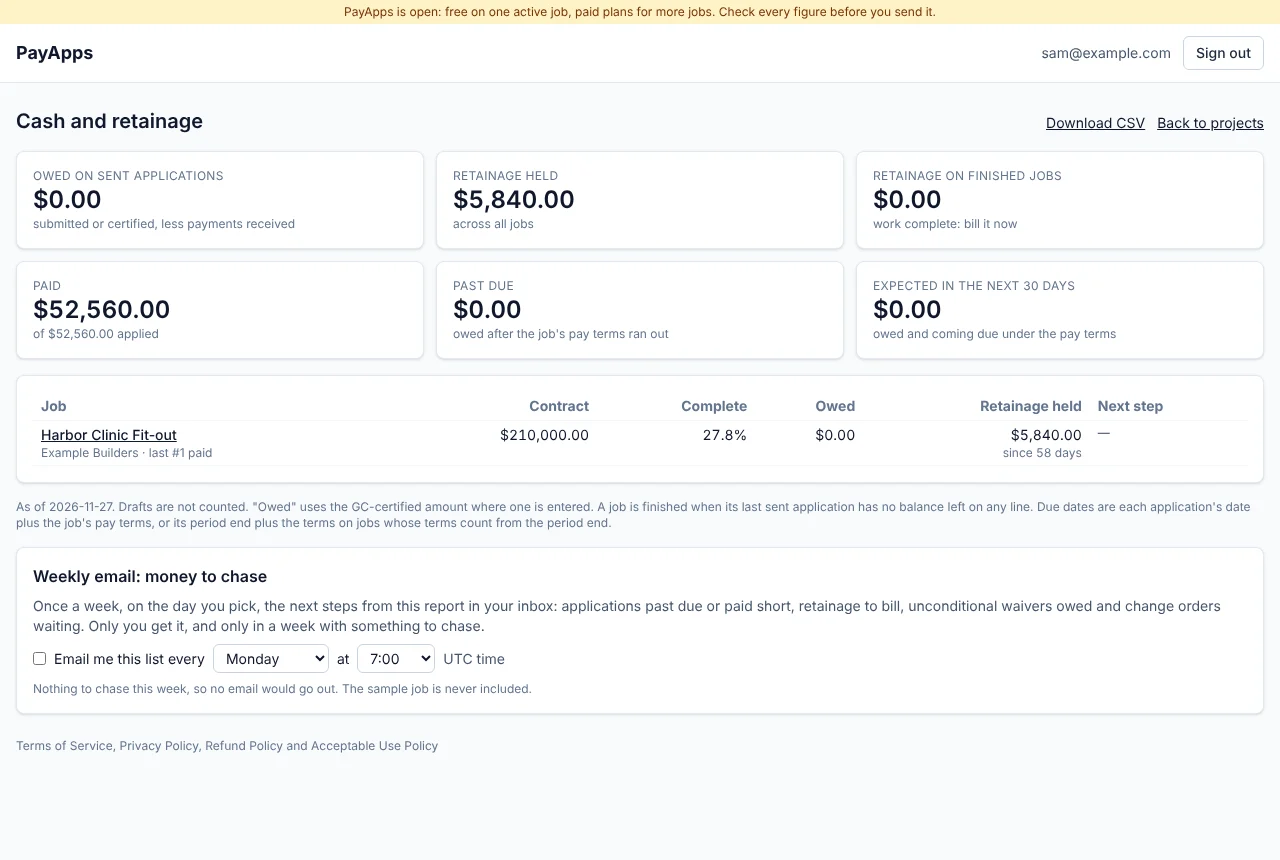
One report of every application sent: billed, paid, still owed and retainage held, sorted by money owed, as a page and a CSV.
- Record each check or transfer against an application, including partial payments; it turns paid when the payments reach the certified amount
- Due dates from each subcontract's pay terms (net days, days after the period end, or pay-when-paid with its outer limit): what is past due, and what to expect in the next 30 days
- Aged 0-30, 31-60, 61-90 and 90+ days, with the most overdue application named so you know who to call
- Interest on late payment: set the rate from your subcontract's late-payment clause, or fill it from a prompt payment statute PayApps has read (Texas, Illinois, North Carolina, Virginia), and see what has accrued on each past-due application, net of partial payments; the second follow-up email to the GC states it. An application paid after its due date is listed with the interest it earned up to the payment, and a draft email asks the GC to add it to the next check; mark each one billed or waived and the list clears
- Each GC's billing cutoff ("by the 25th"): a reminder the week before when nothing has gone out yet, and a note when a draft missed it, so an application doesn't slip to next month's draw
Built · in testing
Lien waivers per pay app
Track the waiver each payment needs (conditional or unconditional, progress or final), prefilled from the job and the amount, and marked sent. Crew plan and up.
- Prints the state's statutory form where we have checked the text against the statute: Arizona, California, Florida, Georgia, Michigan, Mississippi, Nevada, Texas, Utah and Wyoming, plus Missouri's residential final waiver and Massachusetts' partial waiver and subordination of lien (its pay-app lines filled from the application); a general form in states with no statutory form
- Once a payment arrives, a reminder for the unconditional waiver you now owe, for the amount actually paid
- The lien deadline on every job (every plan): the last day to record a mechanics lien in Arizona, California, Colorado, Florida, Georgia, Michigan, Minnesota, Nevada, New York, North Carolina, Ohio, Oregon, Texas, Utah, Virginia or Washington, from the property's state and your last day on site, with the statute cited, and a warning on the cash page and in the weekly email 45 days ahead on any job that still owes you money
- Public jobs (every plan): on a federal job, the Miller Act payment bond dates in place of a lien date (the 90-day notice to the prime and the one-year limit on the suit, 40 U.S.C. § 3133(b)), and in Crew and up the 90-day notice itself drafted from the job (the unpaid amount with retainage, the sub you worked for, your last day) and printed as a PDF; on a state or local job, the state's payment bond claim steps (the notices and the suit limit) dated from your last day and the public body's acceptance in Texas, Florida, New York, Virginia, Washington, Arizona, North Carolina and Ohio, and your retainage checked against the state's cap on public work in 25 states, with the statute linked
- Preliminary notices from the job page where the statute sets the wording or contents: California (private works), Florida's Notice to Owner, Texas' notices of claim and Wyoming so far, prefilled from the job
- Texas: the § 53.056 notice of claim for unpaid labor or materials and the § 53.057 notice of claim for unpaid retainage, word for word, with the 15th-of-the-month date for each unpaid month (rolled past weekends and Texas legal holidays), the retainage notice's 30 days and the lien affidavit dates; the months read from the job's unpaid pay apps, a log of each notice sent, and a reminder on the cash page and in the weekly email before each month's date; save the day your contract (or the GC's) ended and the retainage notice and retainage lien affidavit get their own reminder while retainage is held
- Florida: the § 713.06 Notice to Owner word for word, with the 45-day last day to serve it and the 40-day last day to mail it so service counts on mailing (§ 713.18), from the day you first furnished work; record each notice and copy served (owner, contractor, the notice of commencement's designee) with how and when it went, see when each counts as served, and get a reminder on the cash page and in the weekly email until the owner has one
- California: record each preliminary notice you give, see the 20-day deadline from the day you first furnished work, get a reminder until the owner and GC have one, print the § 8118 proof of notice declaration, and keep the mailing receipt and return receipt with each notice
- We don't tell you which waiver to sign or what it means for your rights: that is a question for your attorney
Built · in testing
QuickBooks Online
Send each pay app to QuickBooks Online as an invoice to the GC, with retainage on its own line to a retainage receivable account, so receivables match what you billed. Crew plan and up.
- Payments you record are applied to that invoice in QuickBooks, after checking its open balance matches
- A backcharge or short pay you close out goes over as a credit memo on that invoice, so the aging in QuickBooks matches yours
- Your own items, per job or per line, and on QuickBooks Plus or Advanced the job's class and location, so the profit and loss runs by job type or division
- Sent once: a retry finds the invoice instead of making a second one
- Only connected when an admin asks for it, and you can disconnect it at any time
Built · in testing
Your office, with roles
Invite your office manager, project managers or bookkeeper by email as admin, editor or viewer.
- Viewers can read and download; editors prepare pay apps; admins manage billing and people
Built · in testing
Job cost and WIP, from the same numbers
Give each schedule-of-values line a cost budget from your bid, then enter or paste costs as they come in (payroll, supplier invoices, rentals, lower-tier subs), or import the bills, checks and card charges your bookkeeper already tagged to the job in QuickBooks Online. Job cost sits next to what you have billed, so you see an under-billed line before the month closes.
- Budget, cost to date and what is left on every line, with cost percent next to billed percent
- Each line's budget split into labor, material, equipment, subcontract and other, against the costs entered in each, so labor running over shows even when the line total looks fine
- When a line's budget no longer holds, the project manager types a cost to complete and the estimate, percent complete and projected profit follow it
- Purchase orders and lower-tier subcontracts per job: put each invoice against one, see what is still open, and the estimate never drops below cost plus open commitments
- A WIP schedule across your jobs: percent complete by cost, earned revenue, over and under billing, projected gross profit
- CSV for your accountant and a PDF of the WIP schedule for your surety or bank; it is a working schedule, not a financial statement
- Crew plan and up
Built · in testing
Certified payroll for Davis-Bacon jobs
On a Federal or federally assisted job you owe the GC a certified payroll every week. Type the week's crew once, with each worker's hours by day, rates, fringe credit and deductions, and download it in the columns of the Department of Labor's optional Form WH-347 (Rev. January 2025) with the statement of compliance in the form's own words, ready to sign.
- Hours, fringe credit (6B), cash in lieu (6C), deduction totals and net pay worked out for you; a worker in two classifications gets a row for each under one entry number
- Checks before you print: a full Social Security number (DOL says never), more than 24 hours in a day, deductions over gross, more than 40 straight-time hours, an overtime rate under time and a half, a rate under the wage determination's rate you typed
- Apprenticeship programs and fringe benefit plans on page 2, with an addendum page when they run over
- Fill the week's hours from a time report (QuickBooks time activities, a time-card export from Gusto, ADP or Paychex): each day's straight time and overtime on its day, workers matched by name, read in your browser
- California public works: the same week as the DIR eCPR XML file (schema 2.0, which DIR requires from 13 January 2027) for the Public Works portal, with doubletime, the craft, the apprentice period, fringe by DIR category and deductions split into federal and state tax, SDI, dues and the rest; checked against DIR's rules before you download it. Full SSNs are typed for that file only and never leave your browser
- New York public work: the same week as the NYSDOL Certified Payroll portal's bulk-upload XML (required for Article 8 public work since 1 January 2026), with each row's classification picked from NYSDOL's list and supplements by NYSDOL type
- Washington public works: the same week as the XML file for L&I's PWIA upload, with L&I's trade code and county per row, apprentice registration and step, fringe in L&I's benefit fields and double time apart; full SSNs are typed for that file only and never leave your browser
- New Jersey public works: NJDOL's own MW-562 filled in with the same week, ready to drop into the NJ Wage Hub's upload, with the demographics columns, federal and state tax apart and fringe by benefit type in section 4(c); filled in your browser
- Next week starts from this week's crew; workers' names and ID numbers stay in your browser and the download, never on our servers
- Every plan. Not a Department of Labor product and not legal advice: you check the figures and sign
Built · in testing
A submittal log that warns before a lead time bites
Shop drawings, product data and samples have to come back approved before you can release material. Log each one per job with its spec section, the day it went, the day the GC owes it back and what they stamped on it, and add the date the material is needed on site with its lead time: the log works back the last day to send it and flags the ones that are already late.
- Numbered per job, with the spec section, the type and the GC's own number
- Start the log from the GC's register (spreadsheet, CSV or PDF) or from your spec sections, including a federal spec's SD lists: read in your browser into rows, each shown with where it came from, for you to check and add
- Sent, required back and returned dates; approved, approved as noted, revise and resubmit, rejected or received for record
- Resubmit adds the next revision and keeps the first one's dates on the log
- Flags: overdue back from the GC, late to send, and delivery at risk from the needed-on-site date, lead time and review days you type
- A transmittal cover sheet PDF per submittal: to and from, what is enclosed, the action requested, the return-by date and the needed-on-site date, the revision it replaces, and a box for the reviewer's stamp
- Read the stamp: the action and date filled in from the stamped copy the reviewer returns (a Bluebeam or Acrobat stamp, or one printed on the page), for you to check and save
- The log as CSV for the GC's meeting or your PM
- Every plan
Built · in testing
A punch list that ends in a back-check, not a phone call
At the end of a job the GC walks it and sends a list. Paste it in (one item per line, with the room or area split off), mark each item fixed as the crew finishes it, and send the GC one email asking for a back-check of everything that is ready. When every item that is yours is accepted, the list says so: that is usually what stands between you and your retainage.
- Numbered per job, with the location, who listed it (GC, architect, owner, inspector or your own walk), the date listed and a due date
- Open, overdue, fixed and awaiting back-check, accepted; or not ours, with the reason (another trade's work, built as drawn), kept out of the count
- A pasted list read line by line: numbering dropped and the location taken from the text before " - " or ": "
- One back-check email to the GC's project manager listing every fixed item, with how many are still open
- Before and after photos on each item, taken with the phone's camera on site, plus the GC's marked-up sheet, so a disputed item comes down to the pictures
- The list as a PDF to bring to the walk (all items, or only what is left), with a column for the GC's initials, and as CSV
- Every plan
Built · in testing
Close-out documents, and what still holds your retainage
Retainage waits on close-out: the punch list accepted and the warranty, O&M manuals, as-builts and the rest delivered. Start from the standard list (consent of surety added on a bonded job), edit it to what your subcontract asks for, and mark each document sent and then accepted. The job page reads the checklist with the punch list and the retainage on your latest pay application and lists what still stands in the way; once nothing does, it drafts the email asking the GC to release it.
- Warranty, O&M manuals, as-builts, attic stock, final inspection and final waiver in one click, with no duplicates; any other document typed in, with where the requirement comes from
- To send, overdue, sent and awaiting the GC, accepted; or not required, with the reason, kept out of the count
- The retainage held on the latest pay application sent, and whether that application bills the whole contract
- What still stands between the job and its retainage, in words: work left to bill, punch items not accepted, documents not sent
- A release-request email to the GC's project manager listing each document with the dates you entered; it states what was delivered, not that the subcontract's terms are met
- The documents themselves kept with each item (the warranty letter, the O&M manuals, the as-built set, photos of attic stock delivered), and the GC's receipt when it comes back
- One close-out binder PDF: a transmittal listing every document with its dates, an index, then each required document's files in checklist order
- Every plan
Built · in testing
Daily reports from the job site
When a GC disputes a change order, a delay or a pay application, the question is what happened on site that day. Write one report per job and day: the weather, who was on site and their hours, the work done, delays and the hours they cost, equipment, deliveries, visitors and inspections, safety and notes.
- Crew lines by company and trade, with workers and hours each; man-hours totalled per day and for the job
- Start tomorrow's report from today's crew and equipment, so a foreman types only what changed
- Photos from the phone's camera, delivery tickets and inspection reports kept with the day's report, and the report with its photos as one PDF for the GC
- Every report written, changed or deleted, and every photo added or removed, is in the job history with who did it and when
- Weekdays since the first report with no report are listed, so a missing day is caught while people still remember it; your company's holidays are left out, so Thanksgiving is not a gap
- Each report as a PDF, or a week's or a month's reports in one PDF to send the GC or attach to the pay application
- The whole log as CSV
- Every plan. A daily report is a record, not a notice of delay: your subcontract says how notice must be given
Built · in testing
Crew timesheets that land on job cost
Your foreman knows who worked where; job cost usually finds out after payroll, weeks later. Enter each worker's hours by day on a job and a schedule-of-values line, and post the week: the labor goes on each job's costs, so an over-running line shows while it can still be fixed.
- Your crew list with each worker's trade and hourly rate; a worker with past hours is made inactive, not deleted
- One week per screen, a row per job and line, hours by day; your company's workweek (Monday or any other day) is kept fixed once hours are entered
- Overtime past 40 hours in the workweek at time and a half, on the hours worked after the 40th, so the job worked on Saturday carries it
- Post to job costs: one labor cost per job and line, wages plus the burden percent you type (none is assumed); a week posted twice adds nothing
- A payroll CSV (straight time, overtime, rate and gross per worker) for your payroll service
- On a prevailing-wage job, one button on the certified payroll page fills the WH-347 week from these hours: straight time, overtime and each worker's trade, with any hours on other jobs named for the gross
- Hours on every plan; posting them to job costs comes with job costing (Crew and up). Federal overtime only: state daily overtime, double time and prevailing wages are for your payroll service
Built · in testing
Your schedule on each job, and the lookahead for the GC's meeting
List the activities you plan on a job (rough-in level 2, set fixtures, pull wire to the panel) with the crew doing each, its start and finish, how far along it is and the activity it waits for. Bring the three-week lookahead to the GC's coordination meeting as a PDF, and see every crew across every job for the Monday crew meeting.
- Each activity's status for today: not started, in progress, done, late start or past its finish, from the dates you typed
- An activity that starts before the one it waits for finishes is flagged, with the earliest day it can start
- When the GC's schedule slips, move an activity and everything waiting on it by workdays in one step; finished work stays where it happened
- Your company's holidays left out of every workday count, move and lookahead: type the days you take off, or start from the federal list and delete the ones your crews work
- A crew lookahead across every active job, grouped by the crew typed on each activity, listing the days a crew has work on two jobs
- The lookahead as a PDF (three or six weeks) and the whole schedule as CSV
- Delays by activity: a daily report names the activity its lost hours held up, and the delay log (days, hours, the delay as written) prints as a PDF and attaches to a time-extension change order as backup
- Every plan. Your schedule here does not change the contract or the GC's schedule, and the delay log is not a notice of delay
Built · in testing
Estimates and proposals that become the job
Price the bid from cost lines (labor, material, equipment, subcontract, other) rolled up into bid items, with markup set per category and sales tax on material. Send the GC a proposal PDF, and when you win, the bid starts the job: its bid items become the schedule of values you bill against.
- Bring in the bid sheet you already keep: an .xlsx or CSV, a supplier's quote, a takeoff material list, or rows pasted from Excel or Google Sheets. It is read in your browser and never uploaded
- Columns are found by their headers, a unit cost per category (material, labor, equipment, sub) gives one line each, and totals and unreadable rows are left out with the reason
- Nothing is guessed: a line with no price comes in at $0 and is marked to be priced, and a unit cost worked out from a total is marked for you to check
- A company price list: material prices, labor and equipment rates and sub quotes typed once, or read from a supplier's price sheet, and picked into any estimate. Save an estimate's lines to the list, and bring an older bid up to the list's prices before you send it
- Add and deduct alternates, numbered on the proposal with a box for the GC to tick; when you win, the accepted ones decide the job's schedule of values
- The proposal shows prices only, with includes, excludes, the date it lapses and an acceptance block; your costs and markup stay yours
- Won bids carry each item's cost to the job's budget on plans with job costing, split by labor, material (with its tax), equipment and subcontract as you bid it
- Every plan
Built · in testing
T&M tickets signed on site, billed as a change order
Extra work the GC's superintendent asks for gets paid when there is a ticket written up that day, signed on site, priced and sent as a change order before the subcontract's deadline. Write the ticket on a phone: the work, the location, who directed it, and the labor, material and equipment that went in. Hand the phone over to sign, then price it in the office and bill one ticket or a month of them on a single change order.
- Labor by trade with workers and hours, material with quantities and units, equipment hours; rates can wait until the office prices it
- The GC's representative signs on the screen (or on paper); once signed, the work and the quantities are locked, and rates and markups can still be set
- Labor, material and equipment markups, each on its own subtotal, carried to the next ticket; rates already used on the job fill in on request
- A rate sheet per job from the subcontract's T&M terms (labor by trade, equipment, material, markups), drafted from the job's tickets in one click; a ticket priced off the sheet says so before it goes to the GC
- Signed tickets not on a change order yet are listed in the weekly money-to-chase email, job by job, with the oldest work date
- Signed, priced tickets become one pending change order on an existing or new schedule-of-values line, and count in pay apps once the GC approves it
- The job's headline figure: signed work not yet on a change order, with the oldest ticket's date
- A priced PDF with the signature, a field copy to sign by hand, every ticket on a change order as one backup PDF, and the log as CSV
- Every plan. A signed ticket is a record of the work, not an approved change order: your subcontract says how extra work is authorized and billed
Built · in testing
Lower-tier waivers from your suppliers and sub-subs
Many GCs hold a payment until your own suppliers and sub-subcontractors have signed lien waivers for the work in your application. Each pay app keeps the list of who owes you one, what for and through when, and whether you have asked and when it came in, so the application goes out with every waiver the GC asked for.
- Who to ask comes from the job's purchase orders and subcontracts (ticked when they have invoiced something) and from last month's list
- Each waiver is owed, asked (with the days waiting) or received, with the amount and a note
- A short request to copy or open as an email: the job, the GC, the waiver kind, the through date and the amount
- The pay app says how many are in and names who is still out
- Attach the signed copy on its row: marked received, and named for the supplier in the backup packet
- Every waiver still out, across all your open jobs, on the projects page and in the weekly email, longest wait first
- Crew plan and up, with lien waivers. Which waivers a contract or state requires is yours to check; nothing is sent for you
Built · in testing
Your GC's portal, filled from the pay app
Each GC has its own portal, cut-off date and format, and the numbers get typed in again once per GC. The pay app you already built fills the files and figures the common portals take, so the portal matches the G702/G703 you send.
- Procore: the subcontractor SOV template filled from your lines, and each month's invoice amounts by line or totalled under the GC's own SOV positions
- Oracle Textura: the This Period or To Date billing upload template, downloaded from Textura and given back filled
- GCPay: the schedule of values as the Excel file its Upload button takes, lump-sum or unit-price
- Trimble Pay: the Flashtract template from its Bulk upload, given back with your lines in columns A to C and its header rows untouched, checked against the contract value
- Each job's billing cutoff ("by the 25th"), with a reminder the week before when nothing has gone out
- Built from each portal's published help, not yet tried on a live project. Submitting into the portal stays your step: we prepare the numbers and files
Next
Also next
In the order subcontractors ask for them:
- A saved checklist per GC: the attachments and format each GC wants, so every pay app for that GC starts with them
- More portals (Siteline and others) when subcontractors bill through them
What it won't do
- Give legal advice, interpret your contract or tell you which lien waiver to sign.
- Produce AIA Contract Documents. If your GC requires the AIA's own forms, you still use those.
- Promise faster payment. It can help you send a complete, correct pay app on time; when you get paid is up to your GC and owner.
PayApps is not affiliated with the American Institute of Architects (AIA) and does not produce AIA Contract Documents. Nothing on this site is legal advice.