Built · in testing
Your schedule of values, imported and billed from
Start each job from the SOV you already have: a spreadsheet, a PDF printed from Excel or an estimating program, or rows pasted from Google Sheets. It is read in your browser and checked before a single pay app goes out.
What it does
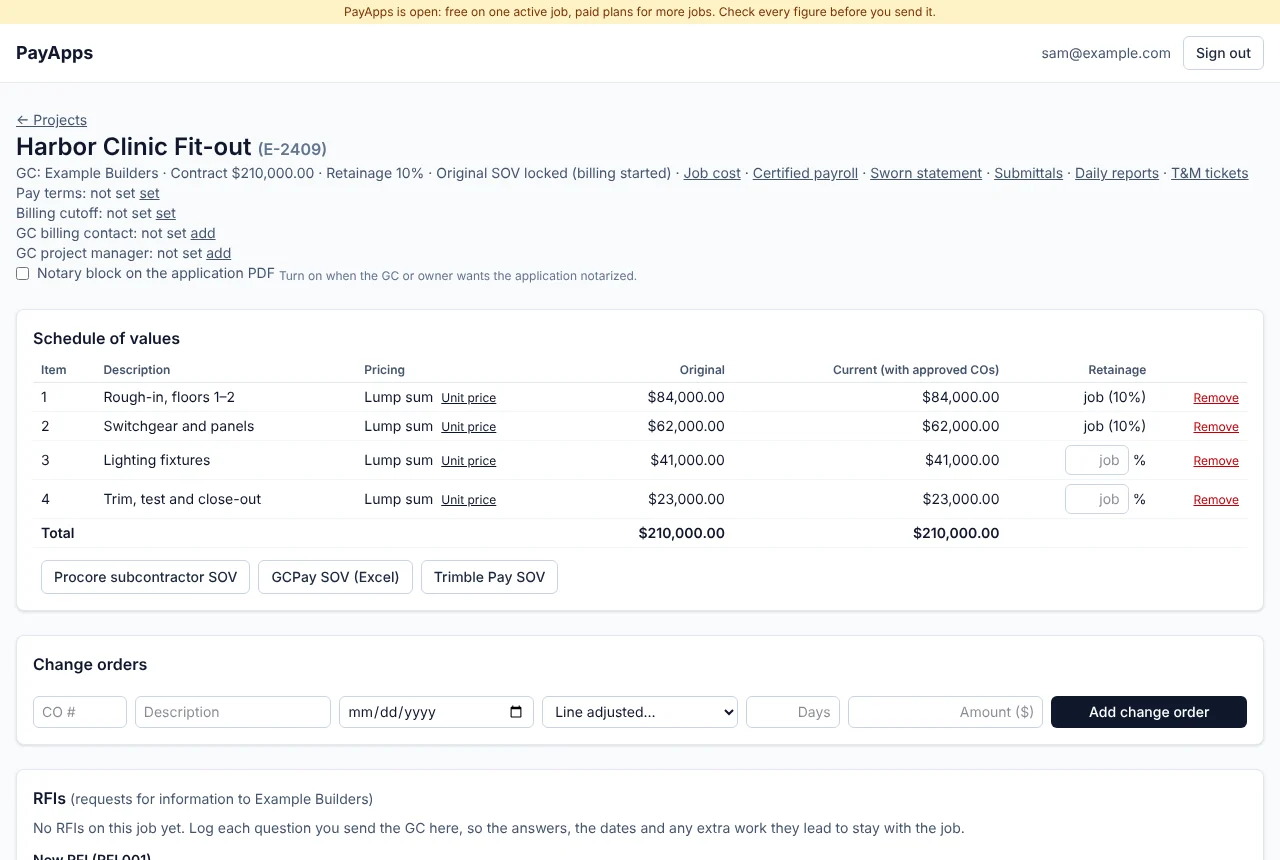
Each job starts from the SOV in your subcontract, with the contract sum and retainage terms. Every pay app is built from it, so lines, scheduled values and totals stay the same from month to month, and the SOV locks once the first pay app goes out.
- Import your own .xlsx, CSV or PDF bid breakdown (a PDF printed from Excel or an estimating program, or a scan: a searchable PDF's text layer is read, and a scan of pictures only, even one fed in sideways or upside down, is read by OCR in your browser, up to ten pages, with a note to check it against the paper): the file is read in your browser and never uploaded, title blocks, division headings, subtotals and totals are left out (each listed with its row), and the sheet's own total is checked against its lines and the contract sum
- Or paste rows from Excel or Google Sheets, copy another job's lines, or type them in
- Starting mid-job? Enter your last application from the old spreadsheet or software as the opening balance and carry on from the next number
- GC on Procore asking for a detailed subcontractor SOV? Choose the CSV template the GC's commitment gives you, place each of your lines under one of their positions, see the totals against theirs, and download the filled template to import; save the placement with the job for the monthly Procore invoice. Columns and the GC's cells are kept as they are; built from Procore's published instructions, not yet tried on a live Procore project
- GC on GCPay asking for your schedule of values breakdown? Download it as the Excel file GCPay's Upload button takes (Item Number, Description and Value, base contract only, as GCPay's subcontractor guide sets out), with a check that the lines add up to the contract amount before GCPay refuses the submission. Built from GCPay's published subcontractor guide, not yet tried on a live GCPay project
- Unit-price contracts: give a line its quantity, unit and unit price (3,400 LF of curb at $18.25) and bill it each month by the quantity installed. The dollars are always quantity × unit price to the cent, the quantity to date is on the screen, the CSV and the PDF, and GCPay's five-column unit-price SOV (Units, Unit Description, Unit Value) downloads from the same job
Plans
Every plan, including Free on one job. See pricing; every module works on the same jobs, so nothing is entered twice.
Free guides on this
Common questions
Which PayApps plans include it?
Every plan, including Free on one job. Free on one job with no card. Paid plans for more jobs are not on sale yet.
Is PayApps new?
Yes. It opened in November 2026 and has no customers, reviews or published results yet. Everything on this page works in the app today; check every figure before you send it.
The rest of PayApps
- Pay application software
- Retainage tracking
- Change orders
- Lien waiver software
- Receivables and cash
- QuickBooks Online
- Job cost and WIP
- Certified payroll
- GC portal billing
- Submittal log
- Daily reports
- T&M tickets
- Punch list
- RFI log
- Estimates
- Job schedule and lookahead
- Crew timesheets
- Close-out documents
- Lower-tier waivers
PayApps is not affiliated with the American Institute of Architects (AIA) and does not produce AIA Contract Documents. Nothing on this site is legal advice.