How it works
From an RFQ in your inbox to a quote your estimator trusts
This is how Job Shop Quote works. It is new, and the first shops on it shape what it does next, so details may change; this page will change with them. Steps marked as not switched on yet are built but off in the hosted app.
1Set up your rates once
You enter how your shop prices work: each machine or work center and its hourly rate, setup charges, material costs or markups, outside processes such as anodizing, plating or heat treat with what your vendors charge, minimum order values, quantity breaks and how you round. This rate table is the only place prices come from. Not sure what an hour on a machine costs you? Work out a machine's hourly rate.
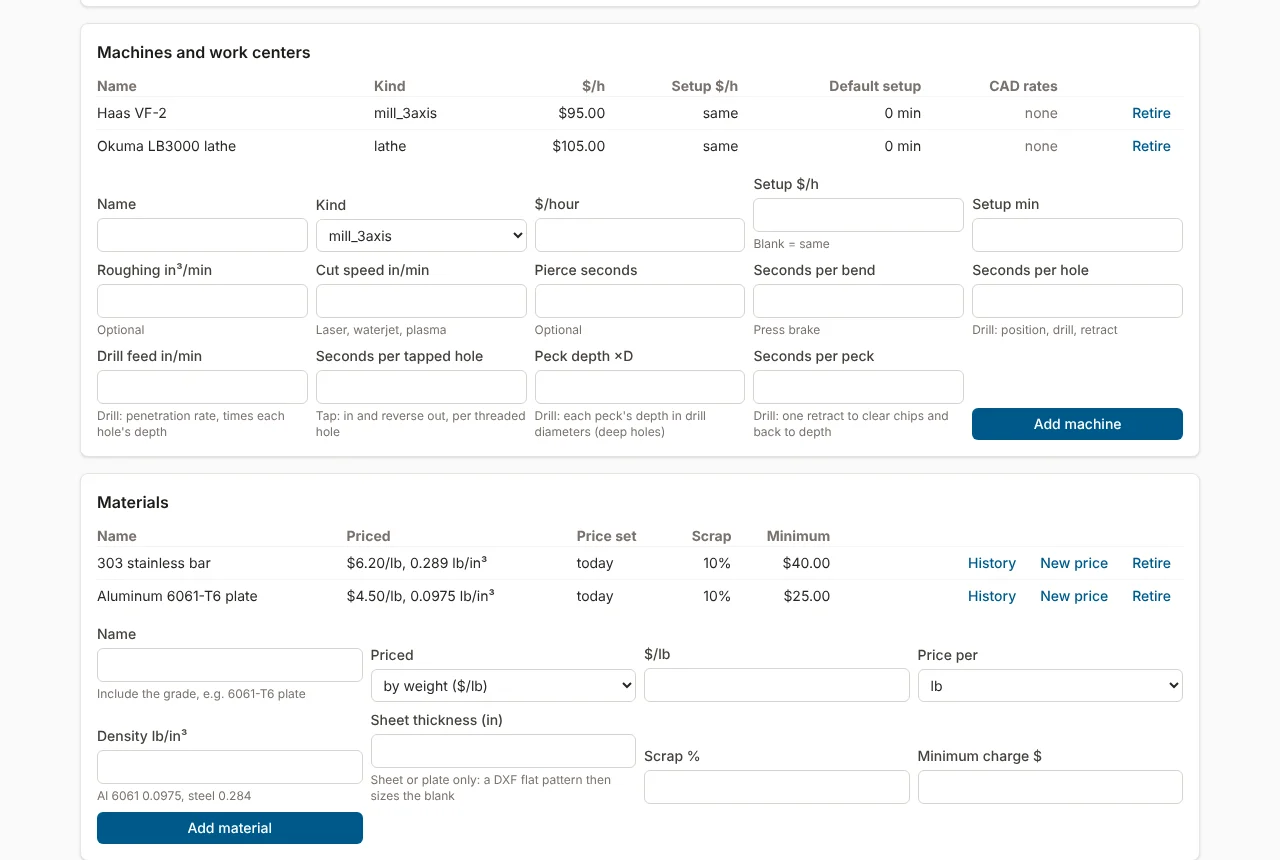
The rate card: each machine's hourly rate, each material's price, density, scrap and minimum, and the date every price was set. Made-up shop. 2Send in the RFQ
Forward the customer's email to your shop's intake address, or upload the PDF drawings directly. It reads email text and PDF drawings, including scans, and CAD files: a STEP solid's size, volume and holes, an IGES solid's size and holes, an STL mesh's size and volume, and a DXF flat pattern's cut length, pierces and bend lines. From those it suggests the blank, the parts per sheet and, where you have entered the rate, a roughing, drilling, tapping, cutting or bending time, each labelled with how it was worked out. Native SolidWorks files are stored but not measured yet.
RFQs by email to a shop address are not switched on in the hosted app yet: upload the files instead.
Reading RFQ emails and PDF drawings with AI is built but not switched on in the hosted app yet. Until it is, the app reads them by fixed rules: labelled lines (Part number, Qty, Material, Finish, Due) and parts tables with a header row, each value shown with the line it came from. You check those and enter the rest yourself.
3It reads the drawing, then checks itself
For each part it pulls out material, stock size, features, tolerances, finish, quantity and due date. A second, separate pass checks every extracted value against the drawing. A value it can't confirm, like a smudged tolerance or a missing material callout, is flagged for your estimator with the page it came from. It is never filled in with a guess.
Reading RFQ emails and PDF drawings with AI is built but not switched on in the hosted app yet. Until it is, the app reads them by fixed rules: labelled lines (Part number, Qty, Material, Finish, Due) and parts tables with a header row, each value shown with the line it came from. You check those and enter the rest yourself.
4Priced by your rules
Setup and cycle-time estimates are the hard part of quoting, so Job Shop Quote proposes them with its reasoning written out (operations, tools, approximate times) for your estimator to accept or correct. The dollar figures are then plain arithmetic on your rate table: the same inputs always give the same price, and every line shows which rate it used. Corrections your estimator makes are saved as rules for your shop, so the next similar part starts closer.
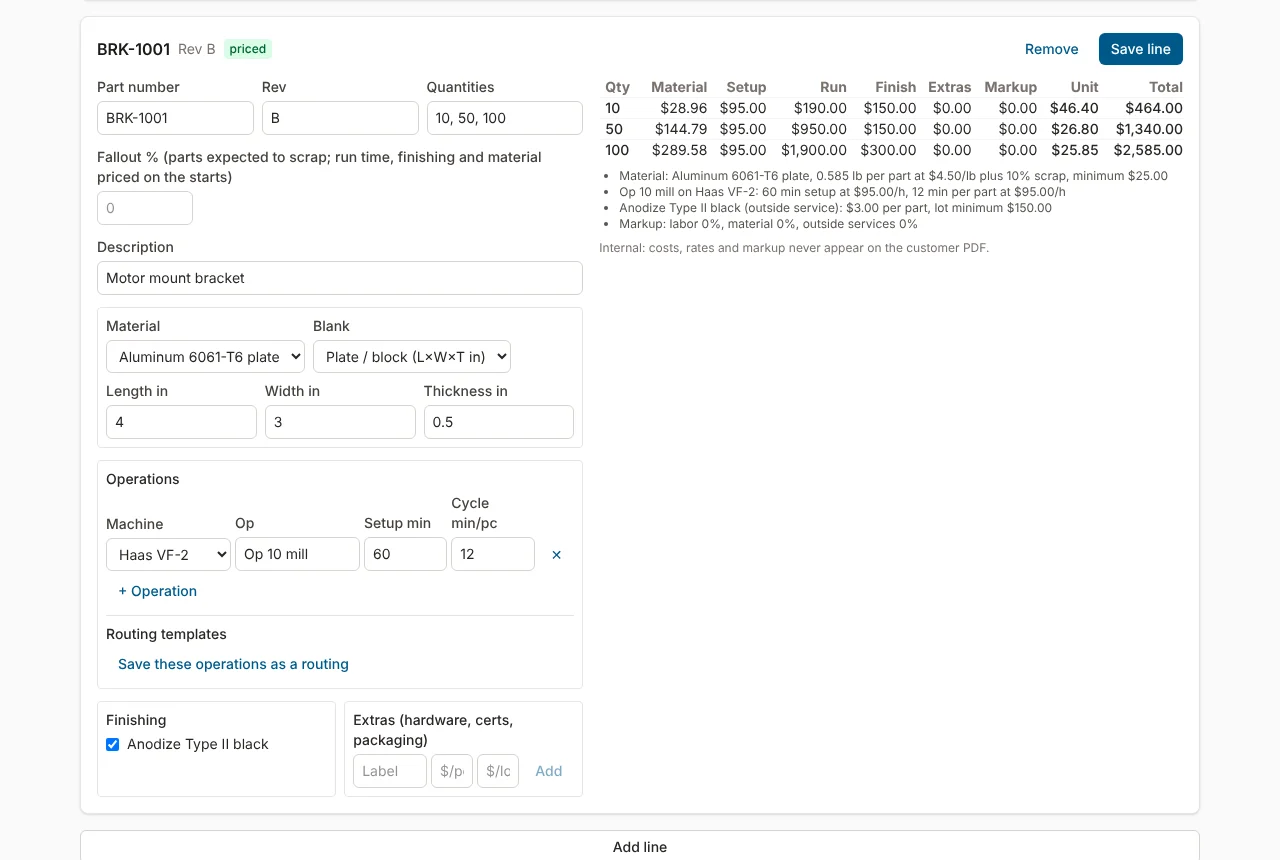
A priced line: one operation and a finish on a made-up bracket, every quantity break worked out, and the rate behind each figure listed under the table. 5Your estimator reviews and sends
The draft quote lists every part, its price build-up and anything flagged. Your estimator edits what needs editing and approves it. You then download it as a PDF on your letterhead or have Job Shop Quote email it from your estimator's send button. It never sends a quote on its own. With it can go a link where the customer picks a quantity and accepts, with a PO number, or declines; the answer shows on the quote, which is marked won or lost.
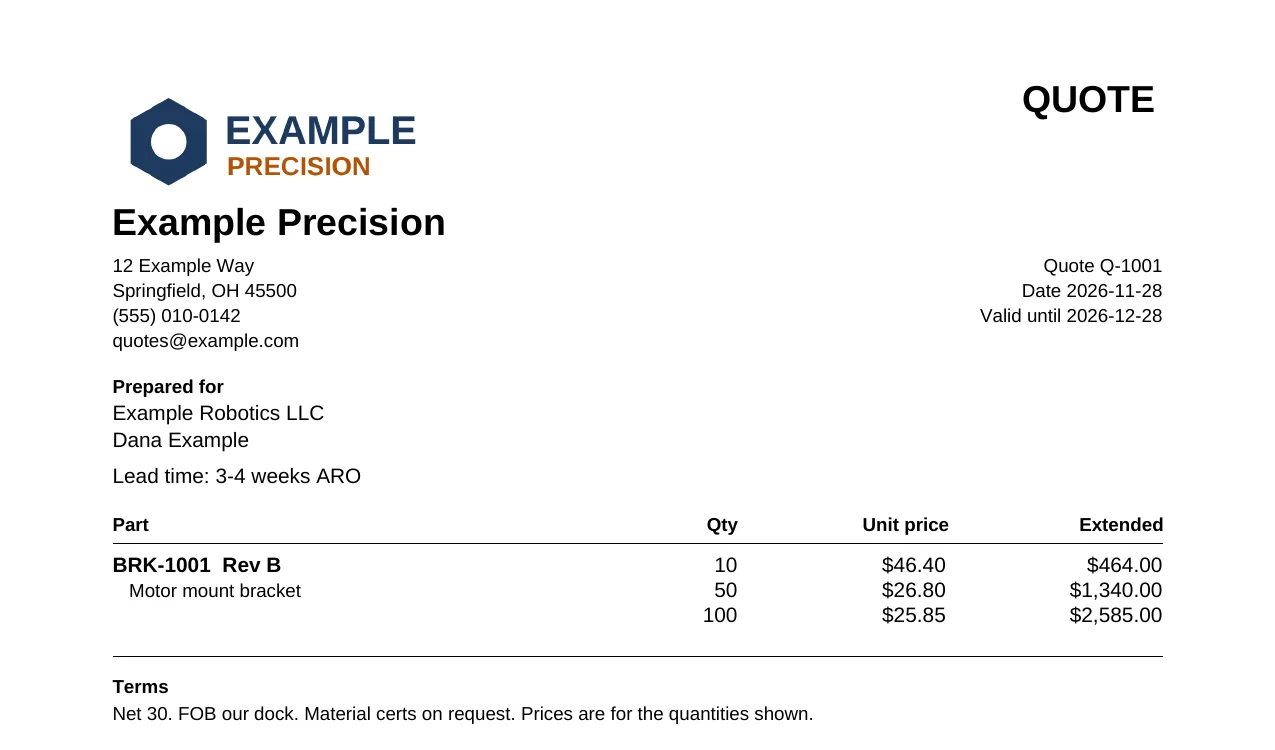
What the customer receives, on your letterhead: your logo and contact lines, prices for every quantity break, the dates, lead time and terms, and none of the costs, rates or markup behind them. Made-up shop, logo and customer.
Each part of the app
- CNC quoting software: Price machined parts from your own rate card: setup and cycle per operation, material, outside processing, minimums and quantity breaks, as a quote PDF.
- Sheet metal quoting software: Quote laser, waterjet and plasma parts from the DXF: cut length and pierces at your own cut speeds, bends, parts per sheet from the nest, and the finish.
- Quoting from STEP files: Upload a STEP file: the size of the solid sets the blank, and its holes pre-fill drilling, tapping and peck time at your own feeds and seconds per hole.
- Repeat parts and routings: See every earlier quote of a part number, start a repeat from the last won quote's inputs at today's rates, and reuse saved routings by part family.
- Material price tracking: Date every material price, keep its history, import a supplier's price sheet, price bar stock by the foot, and see which open quotes a price change affects.
- Online quote acceptance: Email the quote PDF from the estimator's send button with a link where the customer picks a quantity, adds a PO number and accepts or declines.
- Quote follow-up: Every sent quote gets a follow-up day. A morning email lists each estimator's quotes due, and the quote log keeps every call, so no quote goes quiet.
- Win/loss tracking: See your win rate by customer, material, machine, markup, estimator, routing and month, the reasons you lose, and the unit prices you won and lost at.
- Job travelers: Print a job traveler from a won quote: material and stock to pull, every operation with setup, cycle and run time, finishing, inspection and sign-off lines.
- QuickBooks invoices from quotes: Turn a won quote into a QuickBooks Online invoice import file: each part at the break it was quoted at, the PO on the invoice, no retyping.
- Shop load and lead time: Put your open jobs on your machines, see the day each one finishes and each machine is booked until, and quote a lead time behind the backlog.
What it will not do
- Make up a dimension, tolerance, material or quantity that isn't on the drawing or in the email
- Price anything with a rate you didn't set
- Send anything to your customers
- Use your drawings, rates or quotes to train AI models
- Share one shop's rates or drawings with another shop
Defense work: see CUI and export-controlled drawings before sending any.
Set up your rate card and quote a real RFQ
Free to start, no card. Tell us what it gets wrong and that is what gets fixed first.